Cart Total Items (0)

Cart

  • Avenida comandante Gika No.114 Bairro Alvalade

About Course

The Grandlinks ITSM Platform Administration and Operations course provides participants with a comprehensive understanding of how to manage IT services, infrastructure, assets, users, security, and operational performance through a centralized IT Service Management platform.

The course is designed for IT managers, system administrators, help desk teams, technical support specialists, asset managers, and other professionals responsible for maintaining reliable IT operations and delivering efficient support services. It combines service management, infrastructure visibility, remote technical support, monitoring, governance, and reporting within one integrated learning programme.

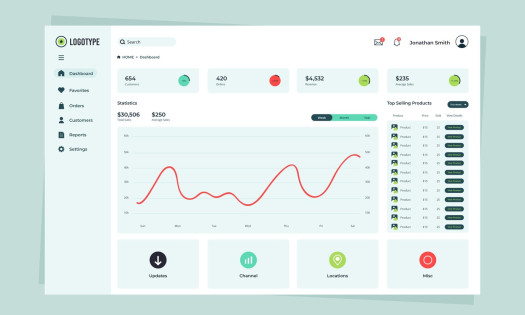
Participants will begin by exploring the Grandlinks ITSM dashboard and learning how to interpret system health indicators, security audit results, ticket statistics, technician workload, asset status, application stability, and historical performance trends. These dashboards provide managers and technical teams with a clear overview of the IT environment and help them identify operational risks, service issues, and areas requiring immediate attention.

The asset management section explains how to manage computers, monitors, printers, software, network devices, mobile devices, and other tracked equipment. Participants will learn how to search, filter, review, update, and organize technical assets according to department, location, building, room, ownership, status, inventory number, and purchase information. The course also covers computer details, software inventory, event logs, IT documentation, asset changes, network scanning, open-port review, and the relationship between assets and support tickets.

A major part of the course focuses on Help Desk operations and the complete ticket lifecycle. Participants will learn how to create, assign, prioritize, monitor, update, resolve, and close support tickets. They will understand how ticket information such as category, urgency, priority, department, location, requester, assigned technician, and related asset is used to organize and control support activities. The course also introduces predefined catalogue tickets, automated assignment rules, ticket activity history, communication records, ownership tracking, and AI-assisted natural-language ticket search.

The technician scheduling module teaches participants how to plan and organize technical work using daily and weekly calendars. Service tasks can be assigned to technicians, linked to existing tickets, prioritized, scheduled into specific time slots, and monitored according to their status and estimated completion time. Participants will also learn how to manage unassigned tasks, unresolved tasks, standalone technical activities, paused work, resumed work, and technician workload distribution.

Remote operations are covered through the Hyper Commands features. Participants will learn how authorized technical teams can remotely install software, open browser-based SSH terminal sessions, connect to computers through VNC or noVNC, review active sessions, monitor connection history, and safely disconnect remote access sessions. This section demonstrates how remote support tools can reduce response time and allow technicians to assist users and maintain devices without requiring an on-site visit.

The monitoring module introduces infrastructure supervision, host availability, alerts, active problems, severity levels, templates, host groups, maps, performance information, and operational network visibility. Participants will learn how monitored devices are organized, how new hosts are added, how problems are filtered and reviewed, and how alerts support proactive incident detection and infrastructure management.

The course also covers mobile device management, including mobile inventory, live location tracking, location history, route playback, stop detection, geofencing, battery and Wi-Fi information, installed applications, and movement analysis. Participants will understand how devices can be assigned to geographical boundaries and how recent alerts can be reviewed when a device enters or leaves a defined area.

Service Level Agreement management is presented as an essential tool for measuring support quality and accountability. Participants will learn how to create and manage SLA policies, define service targets, assign rules to tickets, monitor compliance, identify breach risks, configure escalation behaviour, and analyse met or breached service commitments. SLA dashboards, daily compliance charts, aging information, and policy performance indicators help management evaluate the effectiveness of IT support operations.

The governance section explains how to manage software licences, vendor contracts, and digital certificates. Participants will learn how to track ownership, costs, quantities, validity periods, renewal dates, expiration risks, vendors, departments, and responsible employees. This enables organizations to reduce compliance risks, avoid unexpected expirations, control software usage, and maintain accurate contractual and licensing records.

User management and access control are also key components of the course. Participants will learn how to create and maintain user accounts, assign roles, configure permissions, manage departments, groups, office locations, computer aliases, and login audits. The course explains how module permissions are applied and how multi-role permission resolution helps prevent unauthorized privilege escalation. It also covers user blocking, account status, workstation mapping, and ticket reassignment when responsibilities change.

The system configuration section introduces important integrations and platform settings, including LDAP, SMTP, IMAP, SNMP, and Zabbix. Participants will also learn how to manage notification preferences, language and locale settings, table display modes, map styles, barcode formats, and ticket assignment rules based on department or location.

Finally, the course explains the platform’s authentication and security mechanisms. Topics include username and password authentication, two-factor verification, reCAPTCHA validation, licence checks, failed-login protection, account blocking, secure password recovery, one-time reset tokens, LDAP account handling, and automatic redirection to the first permitted system module after login.

By the end of this course, participants will be able to use Grandlinks ITSM to manage support requests, organize technical teams, control IT assets, monitor infrastructure, perform remote support, enforce service-level commitments, manage licences and contracts, administer users and permissions, and generate meaningful operational information. The course provides the practical knowledge required to improve IT service quality, strengthen infrastructure visibility, reduce response times, enhance governance, and support more informed technical and management decisions.

Show More

Course Content

Assets Management
Asset Management This lesson introduces participants to the Asset Management module in Grandlinks ITSM and explains how the platform is used to identify, organize, monitor, and maintain the company’s IT assets throughout their operational lifecycle. Asset Management is more than a simple list of devices. It provides the IT team with a centralized and structured view of the organization’s technical environment, including computers, monitors, printers, installed software, network devices, storage components, USB devices, ports, and other detected hardware. The module connects technical information with business information such as department, location, user responsibility, inventory number, purchase details, status, and supporting documentation. During this lesson, participants will first learn how to use the Assets Dashboard as the main entry point for understanding the overall condition of the IT environment. The dashboard presents asset totals, computer availability, manufacturer distribution, application stability, security alerts, and system health indicators. Participants will learn how to interpret System Health, Security, Applications, and Hardware scores, and how to use these indicators to identify computers or technical areas that may require investigation. The lesson also explains how dashboard cards and widgets can be opened to access detailed reports. Participants will learn how to review the records that contribute to each score, change the reporting period, search for specific computers or departments, and export information for management, audit, or technical follow-up. Special attention is given to application crashes, application freezes, missing critical updates, disabled BitLocker encryption, battery replacement requirements, antivirus status, firewall status, and other security or maintenance indicators. Participants will then explore the Computers page, which serves as the primary working area for computer assets. They will learn how to search for devices using a computer name, model, alias, IP address, or partial keyword. They will also learn how to apply filters, manage visible columns, navigate between result pages, export computer lists, and use the map view to locate assets with available location information. A major part of this lesson focuses on the Computer Details page. Participants will learn how to open the full record of a selected computer and review its operational, technical, administrative, and historical information. The Summary tab provides a quick overview of CPU utilization, memory usage, network activity, storage usage, online status, recent activity, system information, and asset details. Participants will also learn how to edit computer and inventory information, including: Purchase order number; Inventory number; Department and location; Building, floor, and room; Asset status; Barcode and QR code information; Other organizational and physical identification details. The technical Details tab will be explained in depth. Participants will learn how to review information related to the BIOS, processor, memory, storage volumes, battery, operating system, network adapters, antivirus software, monitors, USB devices, printers, controllers, input devices, and detected open ports. This allows technicians to investigate computer problems without physically accessing the device. The lesson also introduces the network-related tools available from the Computer Details page. Participants will learn how to use the Network Scanner to scan a computer or network range, define IP and CIDR targets, configure scan timeouts and concurrency, and begin a network scan. They will also learn how to review Computer Network Information, including network blocks and detected services such as SSH, HTTP, HTTPS, SMB, RDP, DNS, SMTP, Telnet, and WinRM. The IT Documentation tab is covered as the main area for storing administrative, financial, procurement, and lifecycle information. Participants will learn how to record purchase dates, suppliers, purchase orders, invoice numbers, costs, notes, warranty information, and supporting attachments. These attachments may include invoices, delivery notes, warranty certificates, approval documents, and purchase orders. Maintaining this information improves audit readiness and provides a complete history of the asset. Participants will also learn how computer assets are connected to other ITSM information through the following tabs: Tickets: Shows support requests and incidents related to the selected computer, helping technicians identify repeated issues and active problems. Software: Displays applications and components installed on the computer, including versions, publishers, categories, architecture, and installation dates. Event Log: Presents collected system and application events that support troubleshooting, error investigation, and technical evidence gathering. Changes: Records added, removed, or modified hardware components and devices, allowing the IT team to track asset changes over time. In addition to computers, the lesson introduces the remaining Asset Management pages. Participants will learn how to review monitors and their associated computers, manage SNMP and local printer records, search the software inventory across the organization, identify devices discovered on the network, and use the All Devices page to review detailed hardware components linked to company computers. The lesson also teaches the common controls used throughout Asset Management. These include keyword search, advanced filters, column management, pagination, map views, downloads, and report exports. Participants will understand how search and filters work together to quickly locate specific assets or groups of devices. By the end of this lesson, participants will be able to: Understand the purpose and structure of IT asset management; Use the Assets Dashboard to evaluate the condition of the IT environment; Interpret system health, security, application, and hardware scores; Open and analyse detailed dashboard reports; Search, filter, organize, and export asset records; Locate and review computers and their complete technical details; Update asset ownership, location, inventory, and status information; Review hardware, software, network, security, and system information; Analyse tickets, event logs, installed software, and asset changes; Use network scanning and open-port information during troubleshooting; Maintain procurement, warranty, financial, and supporting documentation; Review monitors, printers, software, network devices, and other hardware; Improve troubleshooting, asset control, audit readiness, and IT decision-making. This lesson provides participants with the practical knowledge required to maintain an accurate asset inventory and use asset information to support technical operations, security reviews, maintenance planning, compliance activities, and informed management decisions.

Free
Free access this course

A course by

Share